Interior Redesign
Upload a photo and remodel any interior, exterior, or landscape in seconds with AI.
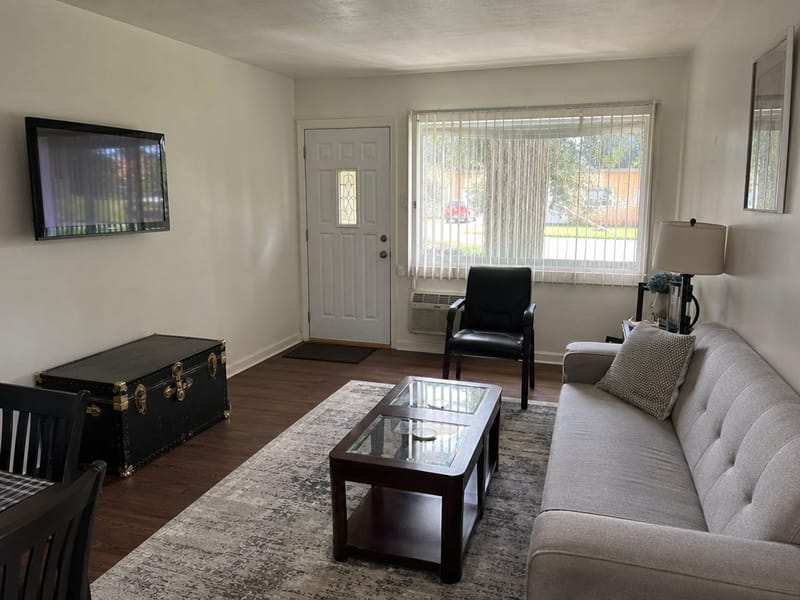
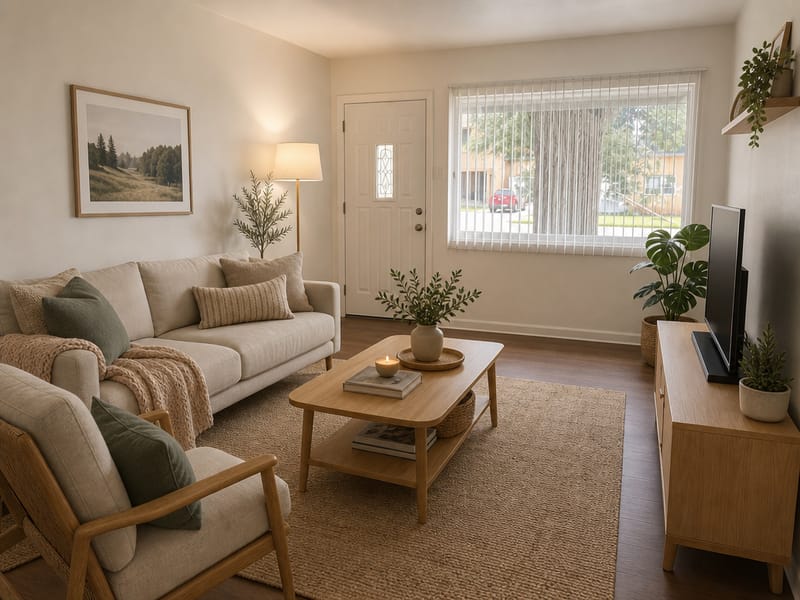
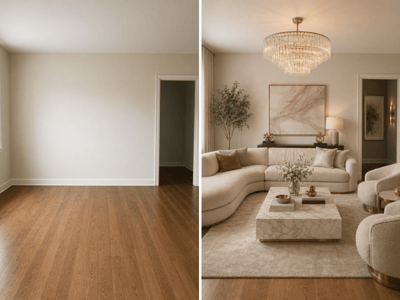
AI Home Redesign: Transform Any Space in Seconds
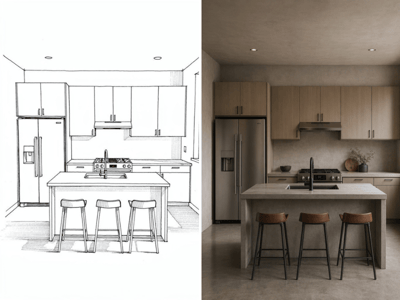
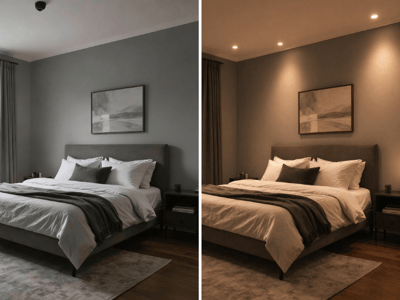
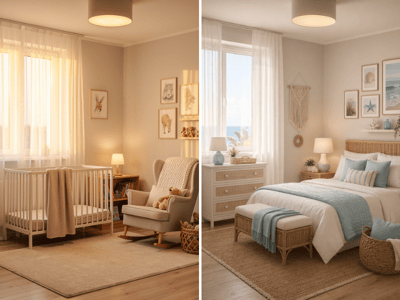
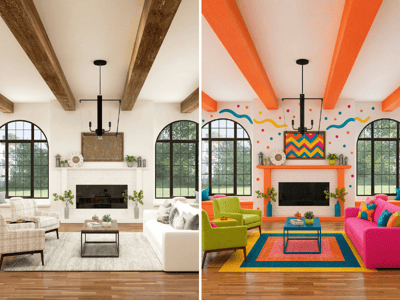
Remodeling a room used to mean hiring a designer, waiting weeks for mood boards, and spending thousands before a single wall got painted. Now, all it takes is a photo and a few clicks. HomeRestyle AI's Interior Redesign tool lets you reimagine any space — inside your home, outside your home, or across your entire garden — using artificial intelligence that generates photorealistic results in seconds.
Use Cases: Who Is This Tool For?
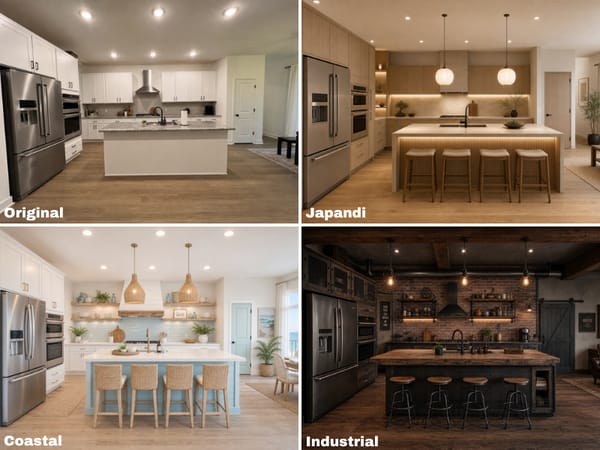
Homeowners Planning a Renovation
You know you want to update your kitchen, but should you go modern farmhouse or sleek contemporary? Instead of committing to a style sight-unseen, upload a photo of your current space, pick a design direction, and see what it actually looks like before you spend a dime. Test out different room styles, color schemes, and layouts until something clicks.
Real Estate Agents and Property Managers
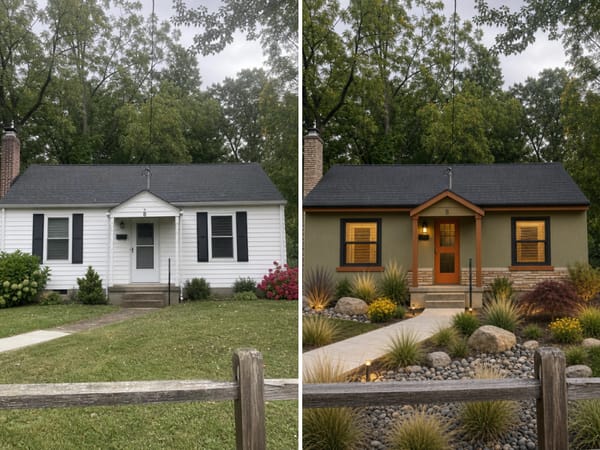
Empty rooms photograph poorly and furnished rooms don't always match a buyer's taste. Use the redesign tool to show prospective buyers the potential of a property — transform a dated living room into a bright, modern space or give a bare patio real curb appeal. It's a fast way to make listings stand out in a crowded market.
DIY Enthusiasts and Renters
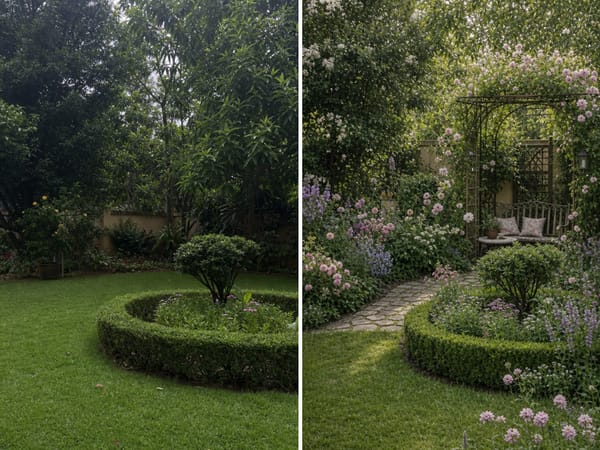
Even if you're working within a tight budget or rental restrictions, seeing your space in a new style can spark ideas you wouldn't have considered. Swap out furniture styles, test bold wall colors, or explore a completely different aesthetic — all risk-free.
Why Use HomeRestyle AI for Interior Redesign?
Instant visual results.
Traditional design concepts take days or weeks to produce. This tool delivers a redesigned room in seconds, so you can iterate quickly and explore more options.
Three space types in one tool.
The redesign page features three tabs — Interior, Exterior, and Garden — each with its own set of form options tailored to that space type. You don't need separate tools for indoor and outdoor projects; everything lives in one place.
Customizable settings for every scenario.
The form dynamically adjusts based on which tab you select. For interiors, you'll choose room types, styles, and preferences that make sense for indoor spaces. Switch to Exterior or Garden, and the options shift to match — think landscaping styles, facade materials, or outdoor furniture arrangements.
No design skills required.
You don't need to know the difference between mid-century modern and transitional. Just upload a photo, make a few selections, and the AI handles the creative heavy lifting.
Professional quality, personal use.
The output is clean and realistic enough for professional presentations, marketing materials, or simply deciding what to do with your spare bedroom.
How to Use the Redesign Tool
Upload a Photo
Start by selecting the tab that matches your project — Interior, Exterior, or Landscape. Then upload a clear, well-lit photo of the space you want to redesign. The better the photo quality, the more realistic your results will be.
Set Your Design Preferences
Once your photo is uploaded, the form will display options specific to your chosen space type. Fill in your preferences and let the tool know what direction you want to take.
Generate and Review
Hit the generate button and wait a few seconds. The AI will produce a photorealistic redesign of your space based on your selections. From here, you can download the result, tweak your settings and regenerate, or try an entirely different style.