Transferencia de Estilo
Transforma el estilo de cualquier habitación con IA: sube una foto, elige una referencia y descubre el nuevo diseño al instante.
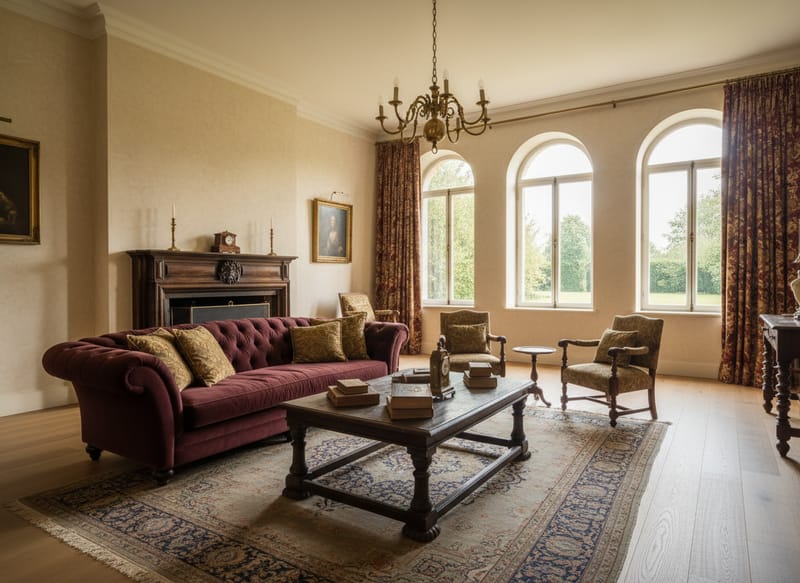
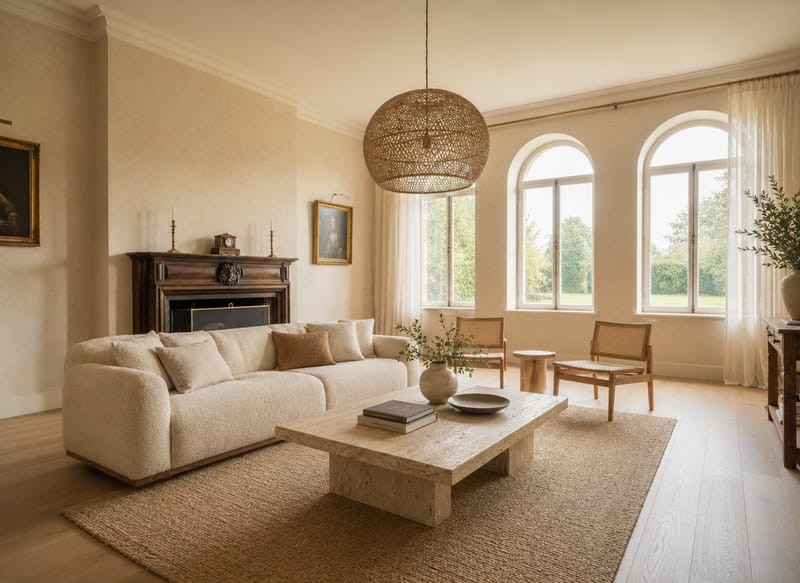
Aplica cualquier estilo de interior a tu habitación con Transferencia de Estilo por IA
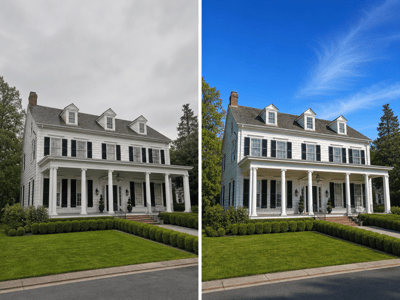
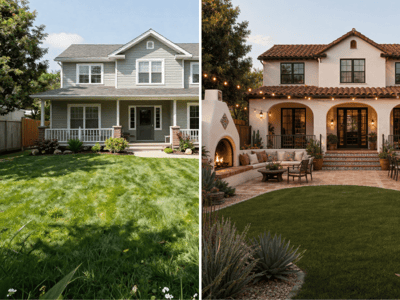
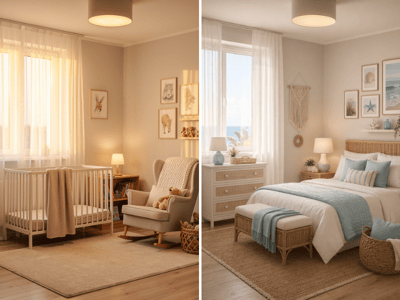
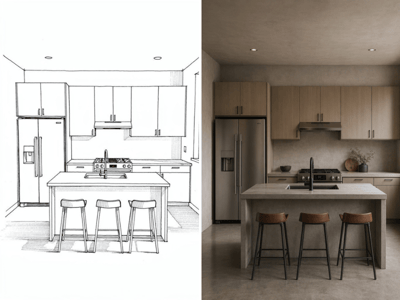
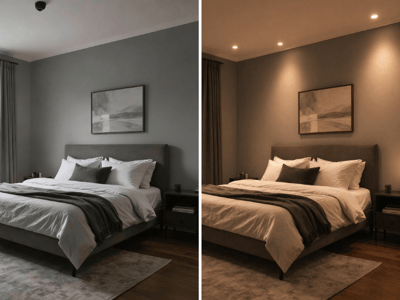
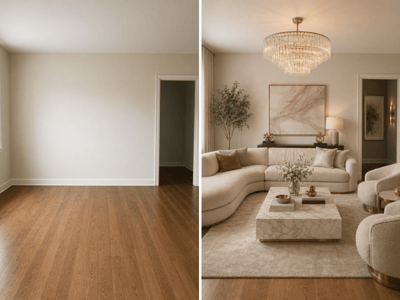
Ya sabes el estilo que te gusta — has guardado imágenes de inspiración. Lo difícil es imaginarlo en tu espacio, con tu distribución y tu luz. La transferencia de estilo por IA para habitaciones lo soluciona. Sube una foto de tu espacio, agrega una imagen de referencia de estilo o elige un preajuste, describe hasta dónde quieres transformar, y la IA aplica esa estética a tus muebles, decoración y acabados.
¿Qué puedes hacer con esta herramienta?
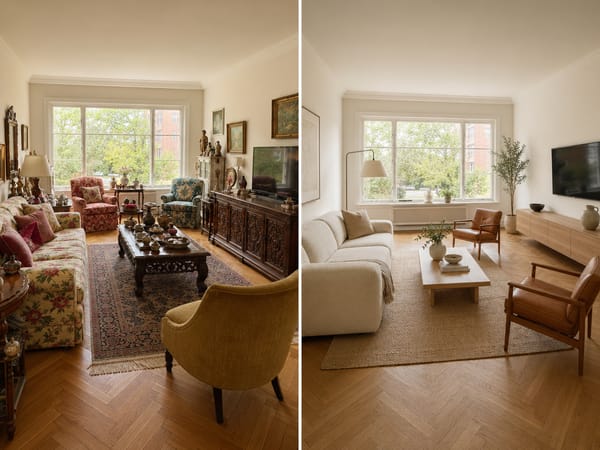
Ve el resultado final antes de tomar una decisión
Redecorar es costoso. Cambiar de idea a mitad de camino lo es aún más. Sube una foto de tu espacio actual y una imagen de referencia con el estilo que buscas — puede ser una foto que guardaste, un recorte de revista, un comedor que siempre te ha gustado. El resultado te muestra tu habitación en ese estilo para que puedas decidir con tus propios ojos.
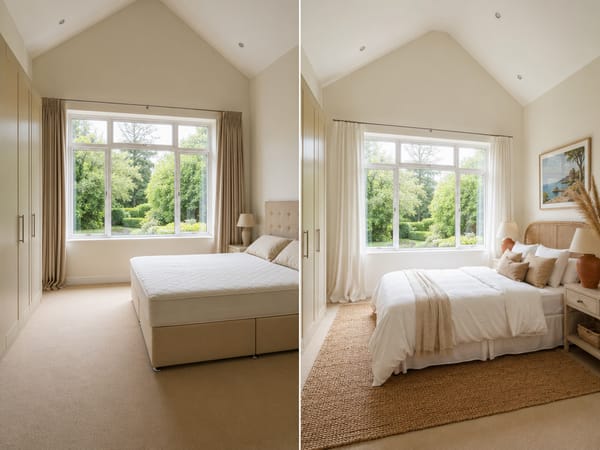
Cambia el estilo de la habitación con IA al vender o preparar una propiedad
Los compradores necesitan imaginarse viviendo en el espacio, y un estilo anticuado o demasiado personal puede dificultarlo. Sube la foto del anuncio y usa una imagen de referencia con un estilo limpio y atractivo para el mercado. La IA aplica ese look en tu habitación real, así puedes crear imágenes ambientadas sin los costos de decoración o sesiones fotográficas profesionales.
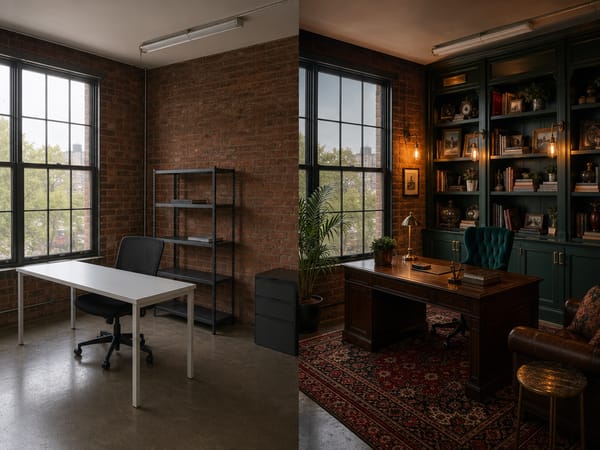
Prueba un estilo en una habitación que no puedes modificar físicamente
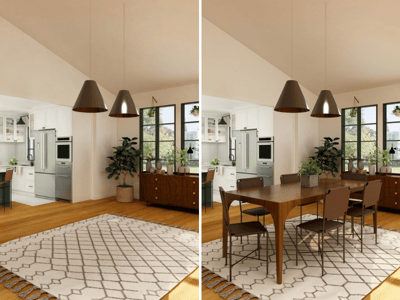
Algunas habitaciones no se pueden cambiar — por contrato de alquiler, por el presupuesto de un cliente o porque la propiedad está en obra. Usa la herramienta para aplicar estilos de diseño a fotos de la habitación y mostrar visualmente lo que es posible. Si pruebas tres referencias de estilo diferentes en el mismo espacio, las opciones se vuelven claras y concretas en lugar de quedar en lo abstracto.
Si el objetivo es darle una función totalmente distinta a la habitación, Rediseño de Espacios es un mejor punto de partida.
Cómo funciona
1. Sube la foto de tu habitación. Toma una foto del espacio que quieres renovar. Cualquier foto de móvil sirve — solo asegúrate de que se vea el cuarto y que haya buena luz.
2. Agrega una imagen de referencia de estilo. Sube una segunda foto mostrando el estilo que deseas aplicar. Puede ser una foto de revista, una captura de Pinterest o la foto de otra habitación que te guste.
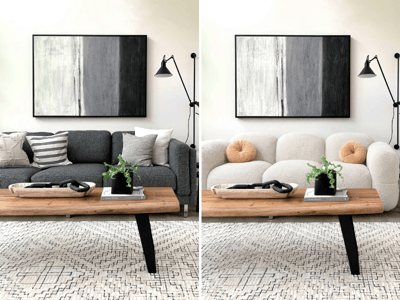
3. Define el nivel de cambio. Usa el Nivel de Rediseño para indicar a la IA cuánto cambiar. "Intercambio de muebles" mantiene paredes, suelos y techo tal cual, solo reemplaza el mobiliario. "Renovación total" reinventa el espacio desde cero. También puedes escribir instrucciones personalizadas para detallar exactamente qué quieres mantener o cambiar.
4. Genera y compara. Elige entre los modelos Rápido y Pro, luego genera tu resultado. Compara el antes y el después uno al lado del otro. Prueba variaciones con diferentes imágenes de referencia o niveles de rediseño hasta dar con la dirección que más te guste.
¿Qué lo hace diferente?
Aplica el estilo a toda la habitación, no solo a un objeto
La mayoría de herramientas de IA para interiores funcionan a nivel de objeto — cambia el sofá, reemplaza la alfombra. La transferencia de estilo por IA para habitaciones funciona en toda la escena. Lee la estética completa de la imagen de referencia y la aplica en muebles, materiales, iluminación y paleta en una sola pasada. Un solo resultado, un look coherente.
La imagen de referencia es el prompt
No tienes que redactar descripciones esperando que la IA las entienda bien. Le muestras exactamente lo que quieres. Una foto de una habitación que te encanta transmite más información de diseño que cualquier prompt. La referencia visual guía directamente el resultado.
La estructura de la habitación no cambia
Paredes, suelos, techos, ventanas y elementos arquitectónicos permanecen igual. La transformación es solo estética — así que el resultado siempre es plausible para tu espacio real, no una habitación de fantasía que ignore tus limitaciones.
Modelos Rápido y Pro para distintas necesidades
Rápido devuelve un resultado en segundos — ideal para explorar varias opciones enseguida. Pro realiza una lectura espacial más precisa: preserva la geometría, maneja referencias complejas o con poca luz y genera detalles de material mucho más nítidos. Si tu imagen de referencia tiene mucha textura o iluminación especial, Pro lo resuelve notablemente mejor. Puedes cambiar entre ambos modelos sin volver a subir tus fotos y preferencias.