Tøm Rummet
Fjern nemt møbler, apparater og pynt fra ethvert rumfoto med AI. Få et rent, tomt rum på sekunder – helt uden redigeringserfaring.
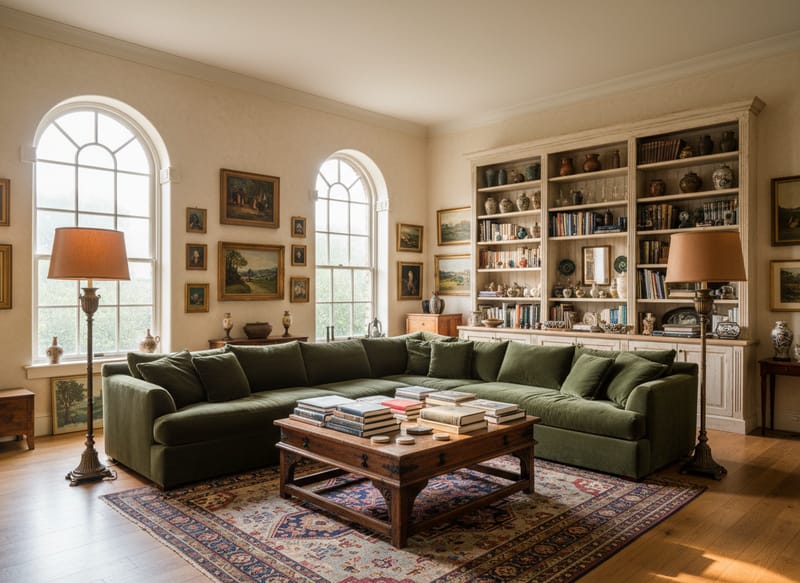
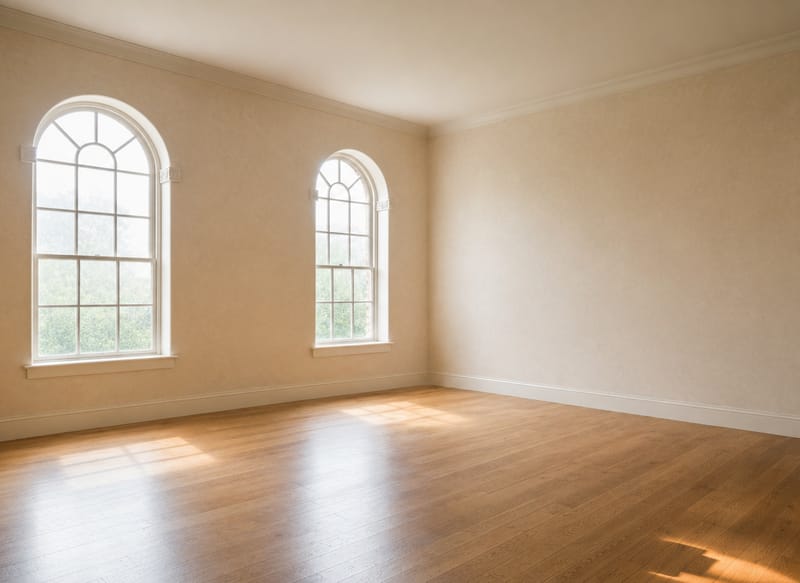
Tøm ethvert rumfoto med AI – få et tomt lokale på få sekunder
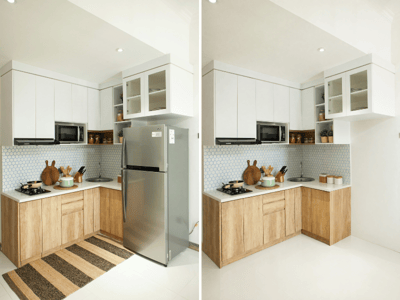
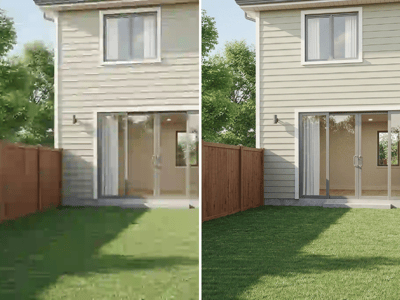
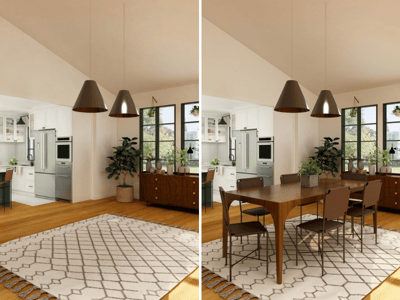
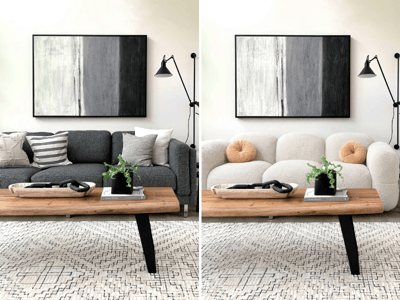
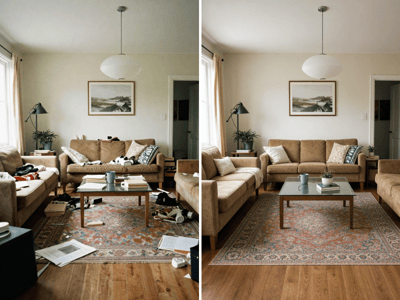
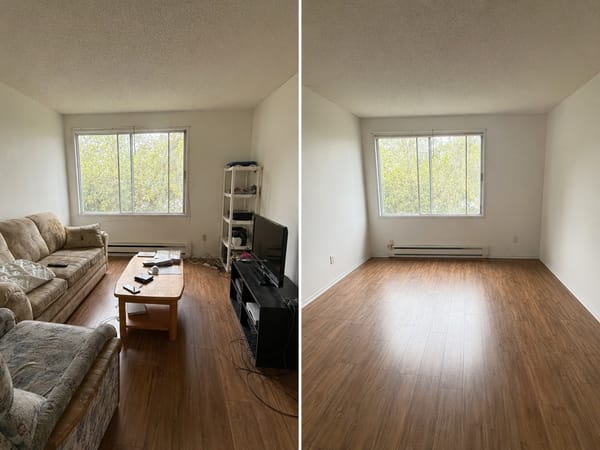
Du vil gerne se selve rummet – ikke de møbler, andre har valgt. Upload et rumfoto, og AI fjerner alle møbler, apparater, pynt og belysning – så du kun har tomme vægge, gulve og lofter tilbage. Ingen markeringer, ingen masker – det er gjort på få sekunder.
Et rent, tomt rum gør det meget nemmere at tage næste beslutning – hvad enten det handler om renovering, indretning eller omdesign.
3 måder at bruge Tøm Rummet AI på
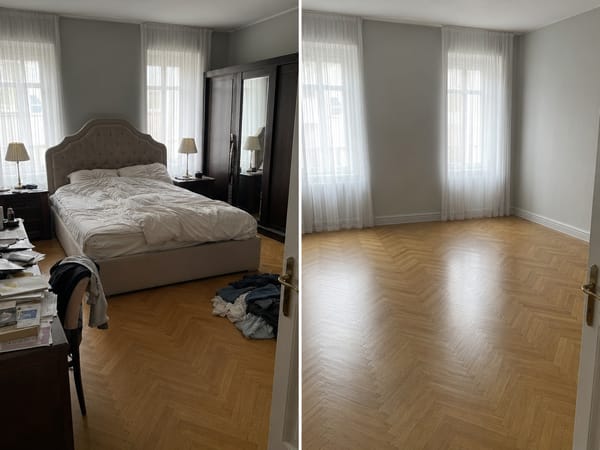
Se det egentlige rum før du går i gang med renovering
Møbler skjuler skader på vægge, skæve vinkler og gulvenes tilstand. Upload et foto af et møbleret rum – og AI fjerner det hele, så du kan vurdere rummets reelle rammer, inden du beslutter dig for en renoveringsplan. Kombinér det med Redesign for at afprøve forskellige stile på det tomme rum.
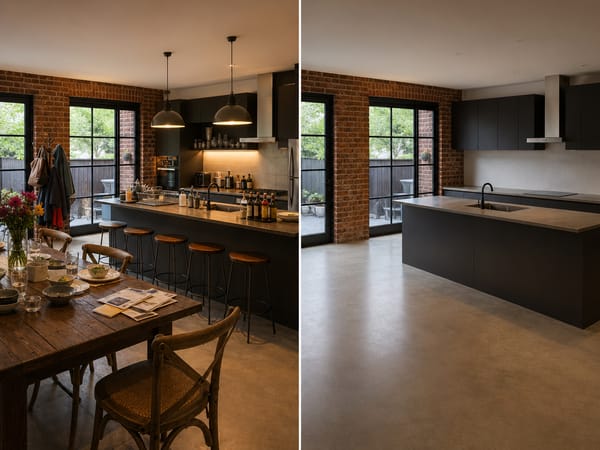
Få rene salgsfotos uden at flytte noget
Et rodet rum ser mindre ud på billeder og gør det sværere for købere at se layoutet. Kør dine salgsfotos gennem værktøjet for at få rene, neutrale billeder – og brug derefter Virtuel Indretning til at møblere dem digitalt med møbler, der egner sig til salgsannoncen.
Dokumentér rummet før du flytter ind
Du undgår nemmere tvivl om gamle skader, når du har tydelige billeder. Tøm rummet virtuelt før ind- eller udflytning, så har du en neutral dokumentation – uden møbler der dæmmer vægge, gulve eller installationer.
Sådan bruger du værktøjet
Upload et klart rumfoto. AI leverer de bedste resultater med billeder taget i stående højder, hvor det meste af rummet kan ses. Undgå ekstreme fisheye-vinkler eller fotos hvor møbler fylder mere end 80 % af billedet – det skal være selve rummets struktur der er synlig for præcis rekonstruktion.
Vælg din model. Fast laver resultater på sekunder og fungerer til de fleste almindelige rum. Pro bruger lidt længere tid, men er bedre til mere komplicerede rum – områder med kraftige skygger, meget rod eller masser af overlappende objekter. Mangler der noget ved første forsøg, så prøv Pro-modellen.
Redigér prompten hvis nødvendigt. Standardprompten fjerner alt: møbler, apparater, pynt og lys. Vil du beholde specifikke elementer – som indbyggede reoler eller loftsbelysning – så tilpas prompten. Eksempel:
"fjern alle møbler og pynt, behold loftsbelysning og indbyggede skabe."
Det der gør værktøjet unikt
Fjerner hele rummet – ikke bare et enkelt objekt
De fleste AI-redigeringsværktøjer fjerner kun enkelte ting, man vælger. Her behandles hele rummet på én gang, så alt møblement, apparater og pynt bliver fjernet i én arbejdsgang. Ingen masker eller lag-for-lag-redigering.
Editér prompten og få fuld kontrol
Standardprompten passer til de fleste behov. Men du kan selv bestemme detaljeniveauet: behold bestemte installationer, fjern kun bløde møbler, eller målret bestemte ting efter navn. AI følger nemlig dine instruktioner.
Den hurtigste måde at få et tomt rum med AI
Stuer, soveværelser, køkkener, badeværelser, kontorer og erhvervslokaler – alt fungerer med samme arbejdsgang. Modellen er trænet på flere rumtyper, så du skal ikke bruge særskilte værktøjer til forskellige rum.