Déflouter Image
Améliorez instantanément vos photos de maison floues avec l’IA. Uploadez votre JPG, PNG ou WEBP et obtenez une image nette en 2K, 4K ou 8K.
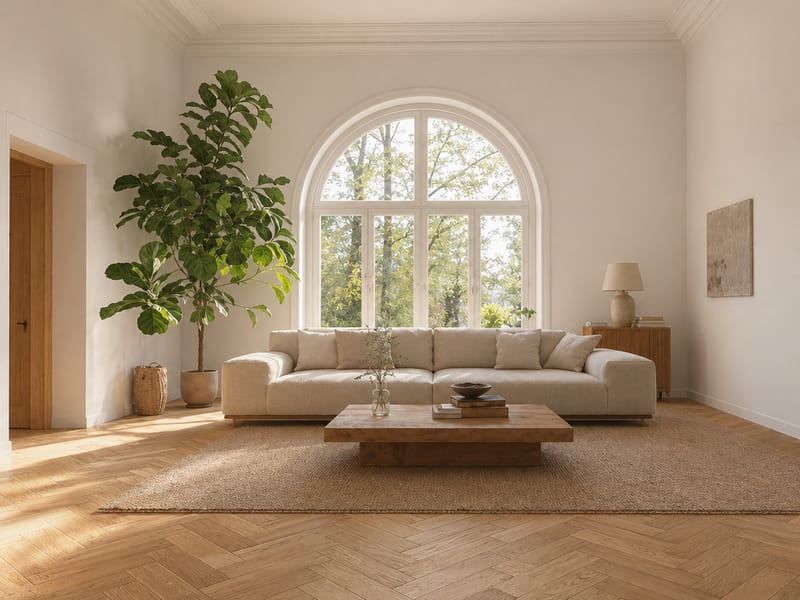
Défloutez n'importe quelle photo de maison floue avec l’IA — Résultat jusqu'à 8K
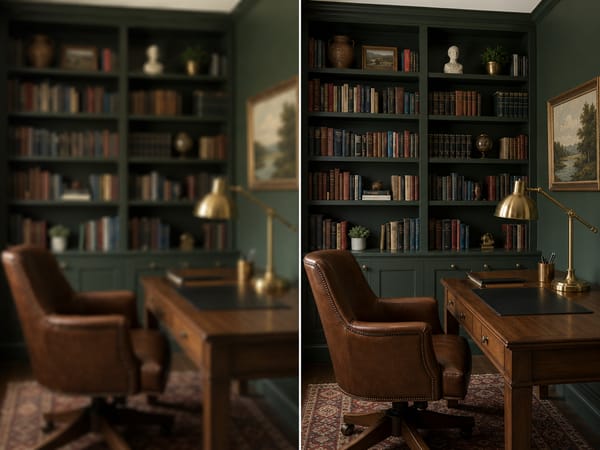
Vous avez pris la photo. La pièce était superbe en vrai. Mais l’image ressort floue, voilée, ou trop basse en résolution pour être utilisée. Déflouter Image corrige tout ça : uploadez votre photo, choisissez la résolution souhaitée, et récupérez un résultat net en quelques secondes.
Quand une photo floue vous freine
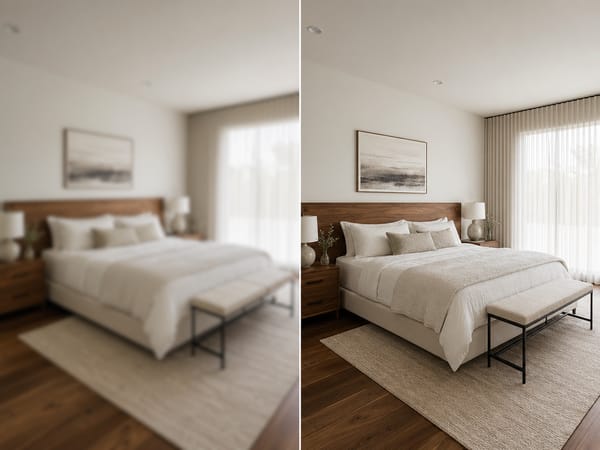
Corrigez une photo d’annonce avant de perdre un acheteur
Une photo floue d’une chambre ou d’une cuisine fait fuir instantanément les intéressés. Les acheteurs le remarquent — et ils passent à autre chose.
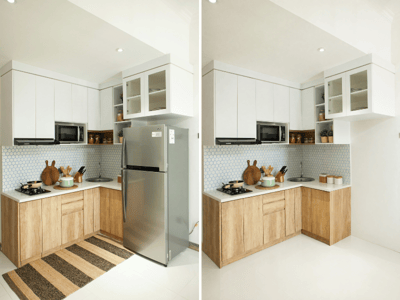
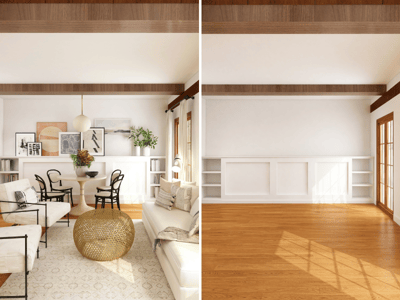
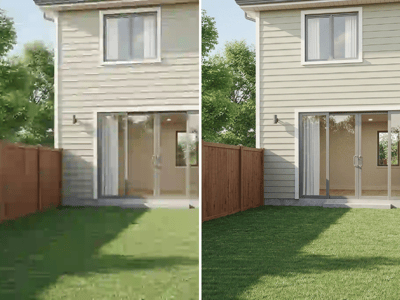
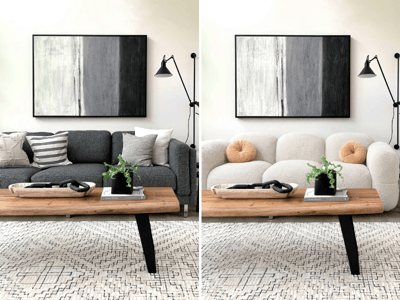
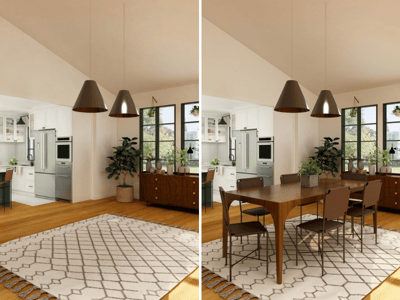
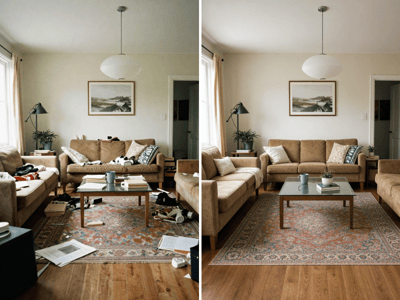
Uploadez la photo, sélectionnez la sortie en 4K, et votre image capte l’attention. Si la pièce est encombrée, supprimez les objets avant ou après le défloutage. Pour les logements vides, vous pouvez mettre en scène la photo défloutée sans déplacer un seul meuble.
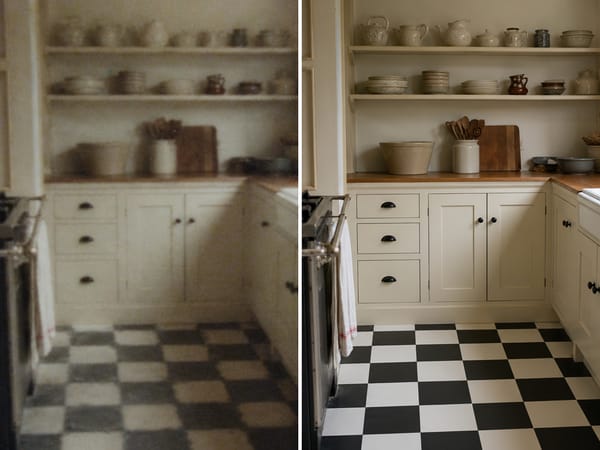
Récupérez une vieille photo de maison que vous pensiez irrécupérable
Albums de famille, anciens scans, fichiers basse résolution gardés depuis des années — ces photos peuvent revivre. Déflouter Image restitue du détail là où la compression et les années ont ramolli l’image. Le résultat ne donnera pas l’impression d’avoir été pris hier, mais ressemblera à une bonne photo faite correctement.
Améliorez une image d’inspiration déco pour une présentation
Vous avez trouvé l’image parfaite, mais elle est trop petite ou pixelisée pour être présentée ? En choisissant la sortie 8K, vous augmentez la résolution de façon spectaculaire tandis que l’IA récupère les détails, textures et profondeur.
Le résultat : une image en grand format, nette, idéale pour vos moodboards ou présentations client.
Comment déflouter votre photo
Uploadez votre image. Utilisez la version de meilleure qualité du fichier — plus il y a de détail à l’origine, meilleur sera le résultat.
Choisissez la résolution cible. Par défaut, le 4K est parfait pour le web et l'impression standard. Optez pour le 8K si vous imprimez en très grand format ou exportez vers un outil de design pro. Le 2K est utile quand la taille du fichier compte plus que la netteté maximale.
Lancez l’outil et examinez le résultat. Zoomez sur les contours et sur les textures fines — tissus, veines du bois, joints de carrelage — pour juger la netteté. Si le rendu paraît trop artificiel, essayez le 4K plutôt que le 8K.
Pourquoi l’IA va plus loin que le simple upscaling
Affûte les détails, pas juste la résolution
La plupart des outils basiques augmentent le nombre de pixels sans vraiment récupérer les détails. Ici, l’IA reconstitue les textures, la netteté des contours et la profondeur — donc les veines du bois, le tissage des tissus, et les motifs des carreaux ressortent, pas juste une version agrandie du même flou.
Analyse la scène, pas seulement les pixels
Le défloutage classique applique le même traitement partout. Cet outil reconnaît les différentes surfaces — tissu, bois, verre, plâtre — et les améliore chacune à sa façon. Un miroir bénéficiera d’un affûtage des bords ; un coussin en lin verra sa texture restituée. Le résultat ressemble à une vraie bonne photo, pas à une image modifiée.
Pas besoin de logiciel ou de manipulations techniques
Uploadez, choisissez la résolution, c’est tout. Pas de gestion de calques, de masques ou de réglages à affiner. Pour les photos où il vous faut un rendu exploitable rapidement, c’est utile.