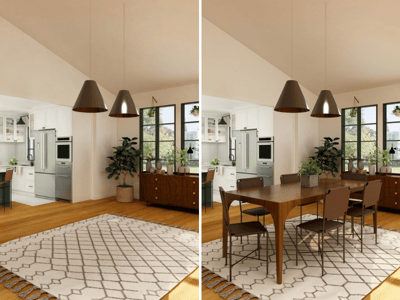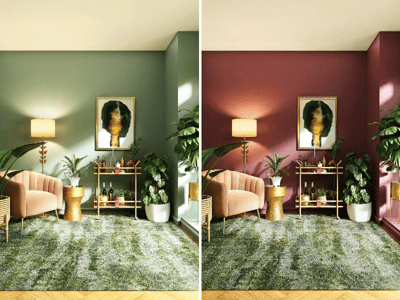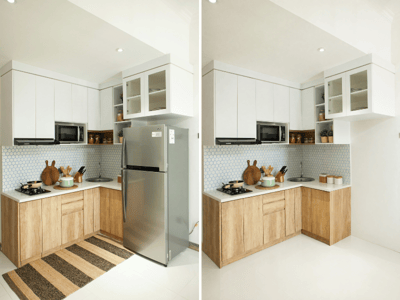
Clean Up
Use AI room clean up to remove clutter, cables, and distractions from any room photo. Upload your image, describe what to fix, and get a tidy result.
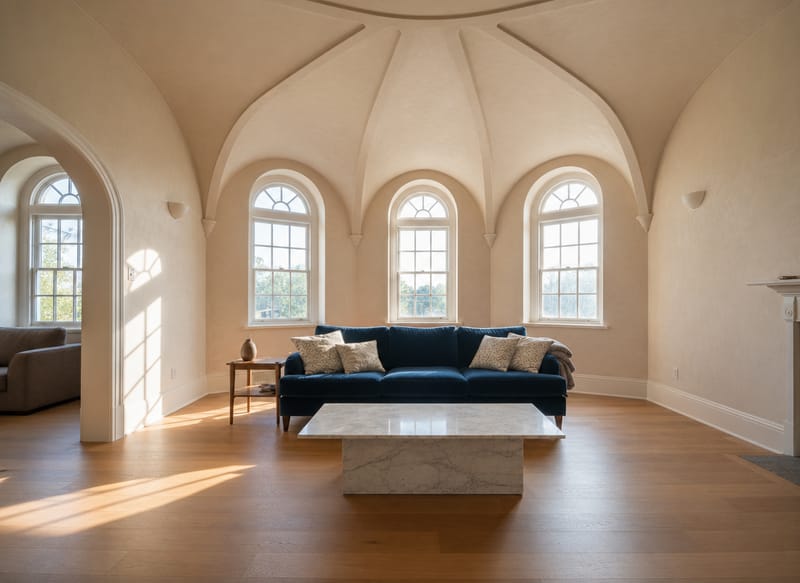
AI Room Clean Up: Remove Clutter from Any Photo Without Reshooting
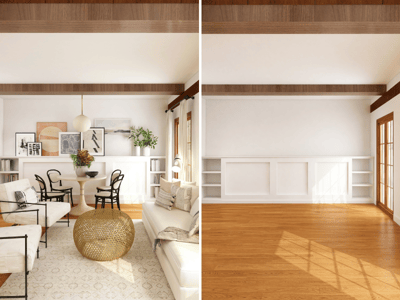
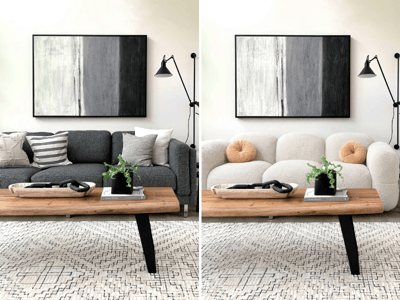
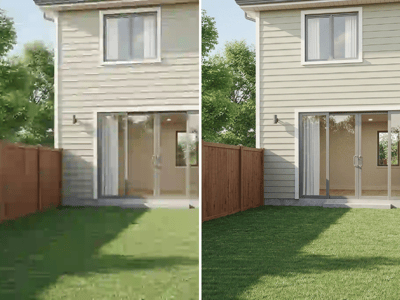
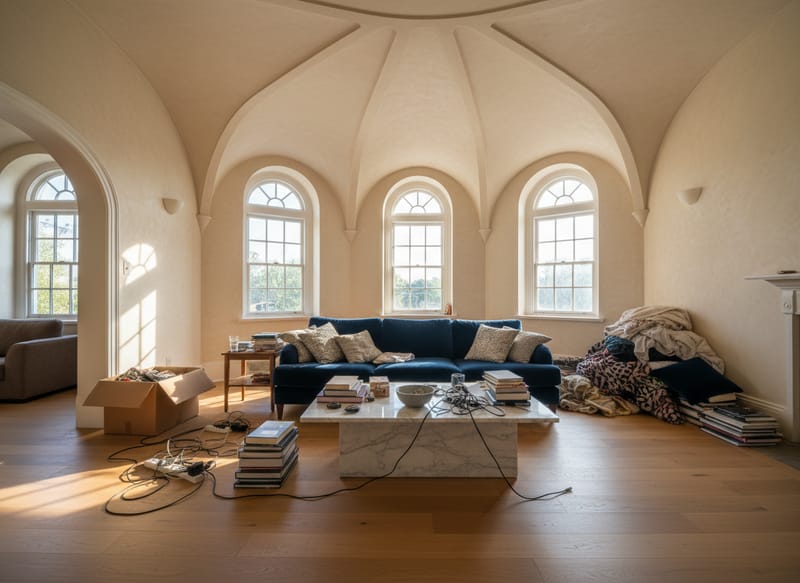
A messy background can ruin an otherwise good room photo. The AI room clean up tool lets you describe what needs to go — scattered objects, visible cables, surface clutter — and removes it from your image without reshooting or manual editing.
What You Can Fix With It
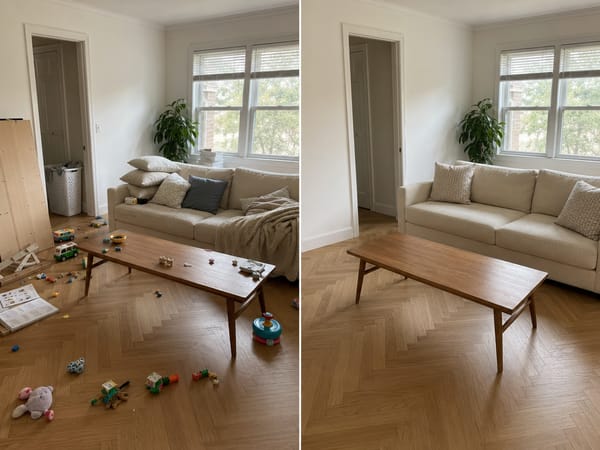
Declutter Before a Property Listing
Listing photos with clutter drive buyers away before they've read a single word. Upload the room photo, describe what to remove — kids' toys, a laundry basket, an exposed cable — and get a clean version ready to use. For a fully staged look afterward, try Virtual Staging.
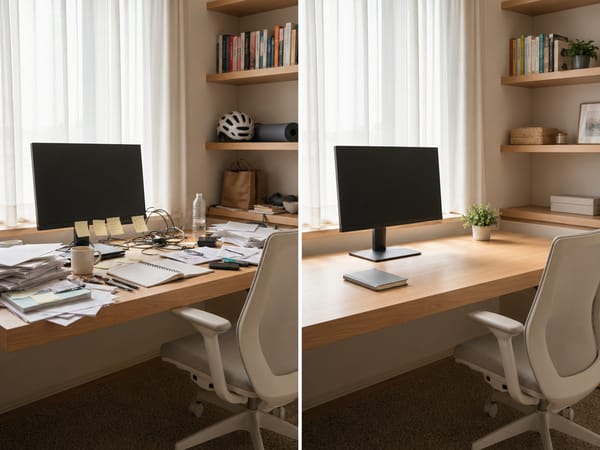
Show a Productive Workspace, Not a Messy Desk
A desk buried in papers and cables signals chaos, not productivity. Describe the specific items to remove and the AI will clear the surface while keeping the structure of the room intact.
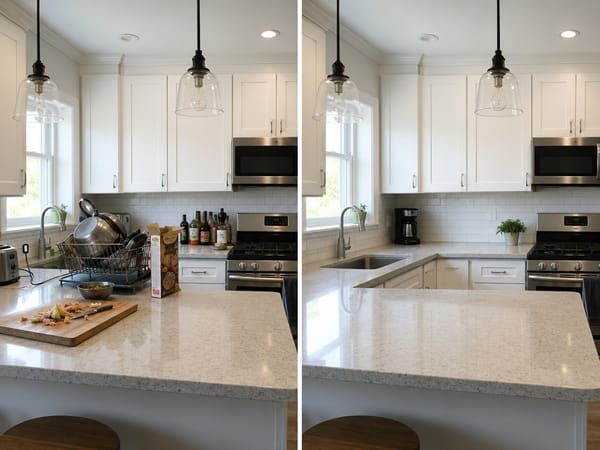
Make Countertops Look Ready for the Camera
Dish racks, condiment bottles, and open packaging crowd out what should be the focal point. The tool removes exactly what you describe, leaving the countertops clear and the room looking intentional.
How to Use It
Upload your room photo. Sharp, well-lit photos produce better results than blurry or heavily compressed images. If your photo is low resolution, run it through [Image Upscaler] first.
Choose Fast or Pro. Fast works well for removing small, isolated objects. Pro handles more complex scenes — cluttered surfaces, overlapping items, areas with detailed textures like rugs or patterned flooring.
Write a prompt. The default prompt works for general tidying. For precise control, be specific about what and where: "Remove the cardboard box in the bottom left corner, the cables along the baseboard, and the pile of clothes on the chair."
What Makes It Different
Prompt-Guided AI Room Clean Up
Most photo editing tools require you to manually select and mask what you want removed. Here, you describe it in plain language — the AI interprets the scene and removes the right things. This makes it fast to iterate when the first result isn't quite right.
Fast and Pro Modes for Different Jobs
Fast mode is optimized for speed. Pro mode is better for rooms with complex backgrounds, detailed textures, or multiple overlapping items to remove. Choosing the right mode reduces the chance of artifacts.
Works on Any Room Type
The tool handles living rooms, kitchens, bedrooms, offices, and bathrooms equally. It's not trained on a narrow set of room styles — unusual layouts, mixed-style rooms, and non-standard spaces all work.
Fast to Iterate When the First Result Isn't Right
Re-running with a refined prompt takes seconds. If the first output misses something or fills an area incorrectly, adjust your description and try again — there's no manual re-masking or layer work involved.