Text to Design
Generate any room with AI. Pick a design style, color palette, and lighting — then describe the details. Photorealistic results in seconds.
Generate Any Room Design from Text with AI — No Photos Needed
Most room design tools ask you to start with a photo. This AI room design generator works the other way around: type what you want, and the AI builds the image for you. Choose a room type, pick from 15+ design styles, set the color palette and lighting — then add specific details in plain text. The result is a realistic image of a room that doesn't exist yet. No design experience needed.
What You Can Do With It
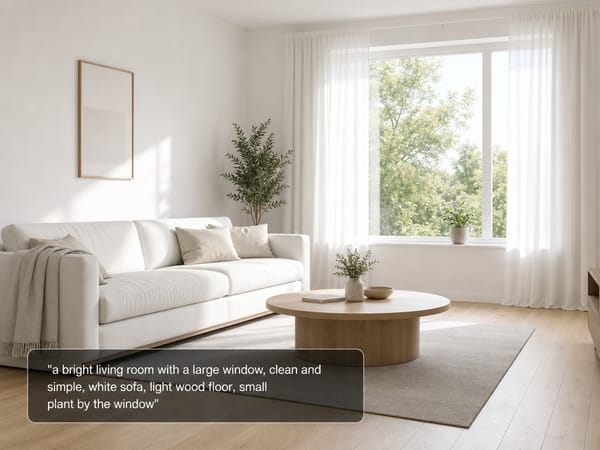
See a Room Before You Buy Anything
You have an idea of what you want — a bright living room with a clean, simple look and a large window wall — but no way to see it until you've already committed. Type a few details, pick a style and color palette, and generate a render before you spend anything.
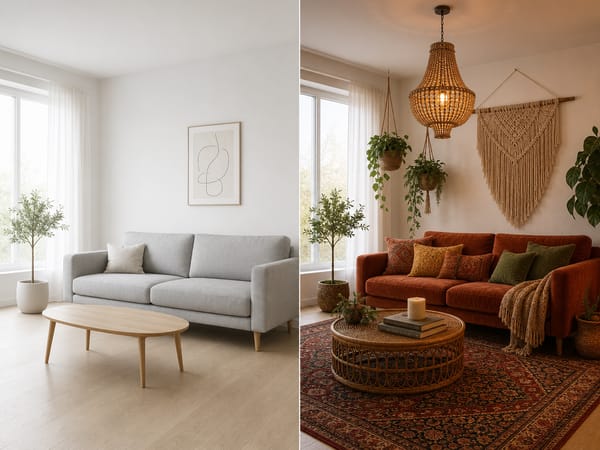
Compare Two Styles in the Same Room
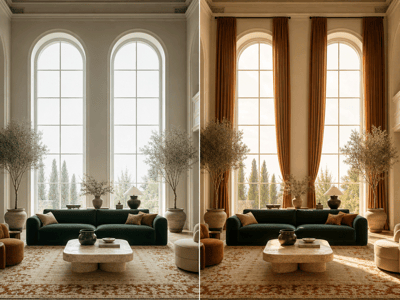
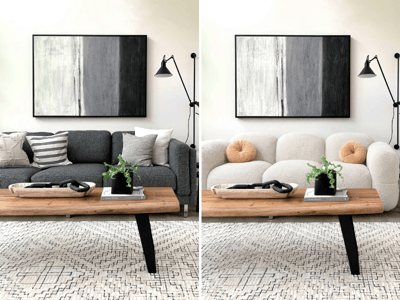
Not sure if you want a modern look or something warmer and more rustic? Run the tool twice with the same room type and color palette, different style. You're comparing the same room with two different directions — not someone else's apartment from Pinterest.
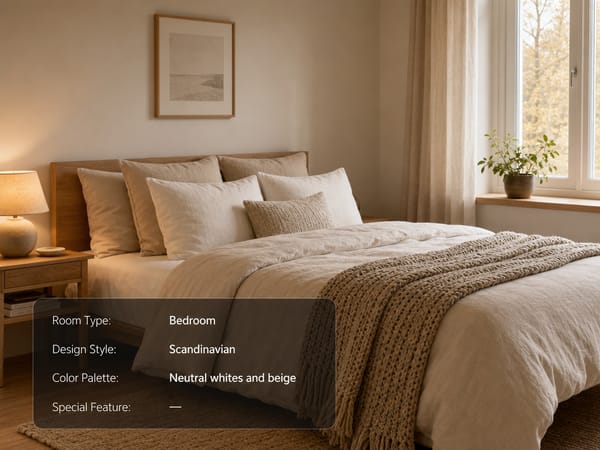
Start With a Blank Space
No furniture, no direction, not sure where to begin?
Describe what's fixed in the room — a small window on one side, a built-in wardrobe, an awkward corner — and let the AI fill in the rest.
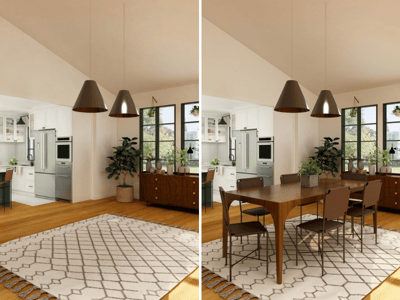
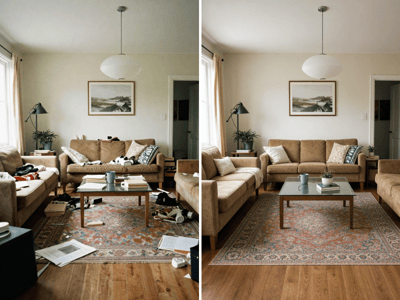
Use the output as a starting point for your actual shopping list, not just as inspiration. Once you have a direction, you can take it further — upload a photo of your actual room and visualize specific furniture in it before buying anything.
How It Works
Select Room Type. Bedroom, Living room, Kitchen, Bathroom, or Home office. Use Custom for anything else.
Pick a Design Style. 15+ options, each with a preview photo. Not sure? Pick whichever photo looks closest to what you have in mind.
Choose a Color Palette. Bright & Airy, Cozy & Warm, Calm & Cool, Bold Contrast, or Soft & Light. Pick the one that matches the mood you're after, or use Custom.
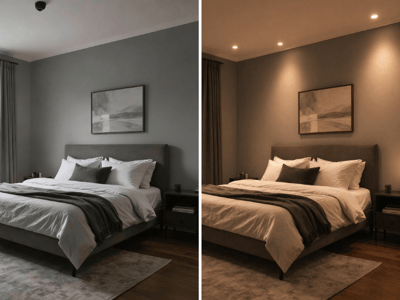
Set Lighting. Five presets from Bright natural daylight to Golden hour sunlight. Select Custom if none fit and describe it in the Special Feature field.
Write your Special Feature prompt — or skip it. Describe what's in the room in plain language: "a cozy bedroom with a large window" or "queen bed with linen bedding, oak nightstands, knit throw." Leave it blank and the AI fills in the rest. Not sure how to phrase it? Hit AI Improve.
Choose your model and generate. 4:3 works for most room views. Fast mode is good for quick comparisons; Pro takes longer but produces sharper detail.
What Makes It Different
15+ Design Styles, Each With a Visual Reference
Most tools give you a style name and expect you to know what it means. Here, every style comes with a preview photo of a real room — so you're choosing based on what you actually see, not a label. Styles range from clean and modern to warm and rustic, with options covering most directions a room can go.
A Prompt Field That Works for Everyone
You don't need design vocabulary to use the Special Feature field. "A cozy bedroom with warm lighting and a big window" produces a real result — so does "queen bed with linen bedding, oak nightstands, herringbone floors." Write the way you naturally talk about a room. The AI Improve button is there if you want help making your description more specific.
Color Palettes That Work Across the Whole Room
Instead of picking individual colors, you choose a palette — five options that each produce consistent, coherent color across walls, floors, fabrics, and surfaces. Swapping from Cozy & Warm to Calm & Cool changes the feel of the entire room, even with the same style selected.
Set Lighting Before the Image Is Generated
With a photo-editing workflow, you'd adjust lighting after the fact. Here, you choose it upfront — five presets plus Custom — so the mood is built into the render from the start. If you'd rather adjust lighting on an existing photo, that's a separate workflow.